
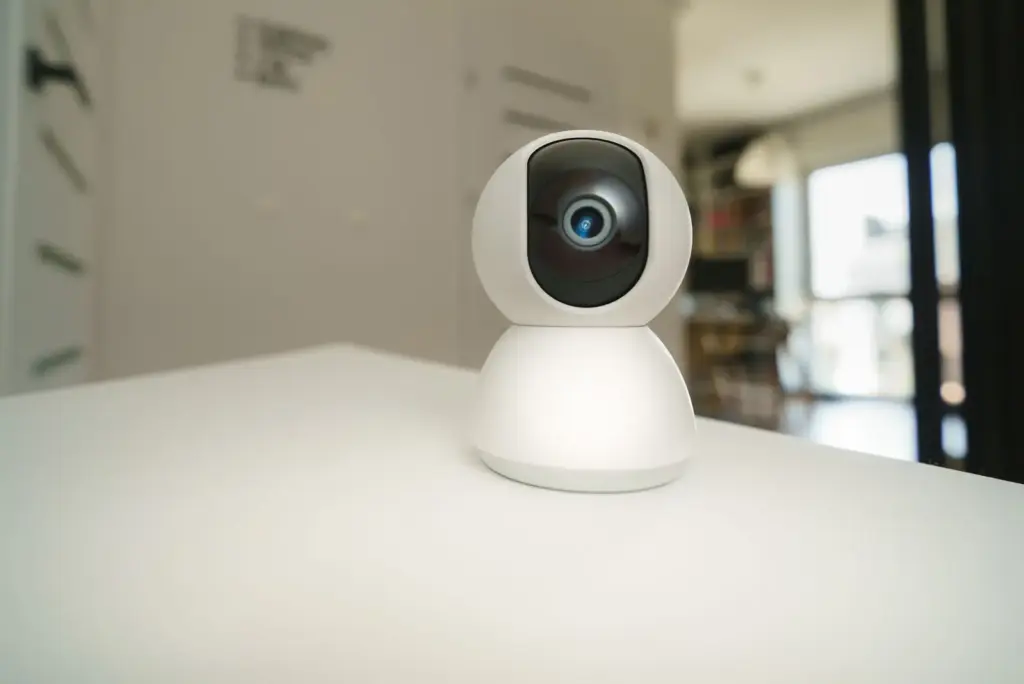
Smart cameras, locks, and sensors are convenient, but a lot of them are also quietly shipping data back to a company’s server every time something moves in front of a lens. That’s not necessarily a bad thing, most of it is just how cloud features work, but it does mean the privacy settings buried in an app matter a lot more than most people realize.
Smart home privacy isn’t about ditching smart devices or going full off grid. It’s about setting things up so the convenience stays, and the data footprint gets a lot smaller. Three things do most of the heavy lifting here: where footage actually gets stored, how the devices sit on the network, and what permissions get handed out per device.
For a printable, step-by-step version, work through our smart home privacy guide.
Local-First Storage: Keep the Footage at Home
Most smart cameras default to cloud storage because that’s how the manufacturer makes recurring revenue, not because it’s the only option. A lot of cameras on the market now support local storage too, it’s just often turned off or buried a few menus deep.
A few practical things worth checking:
SD card or local hub storage. Many camera brands support recording straight to a microSD card in the camera itself, or to a local hub like a NVR (network video recorder) sitting in a closet. Footage never has to leave the house unless someone chooses to pull a specific clip.
Turn off cloud backup if it’s not needed. Even when a camera supports local storage, cloud backup is sometimes enabled by default as a “just in case” feature. If it’s not being used, it’s worth switching off in the camera’s settings menu, not just ignoring it.
Check retention settings. Cloud services often keep footage for 30, 60, or 90 days by default. Shortening that window, or switching to local storage with a shorter overwrite cycle, cuts down how much footage exists somewhere outside the house at any given time.
Look for “local processing” for motion and person detection. Some cameras process motion detection or facial recognition on the device itself instead of sending every clip to the cloud to be analyzed. That’s a meaningfully different setup than a camera that has to phone home just to figure out a bird flew past.
None of this is about being anti-cloud across the board. Cloud backup is genuinely useful if a camera gets stolen or damaged, since the footage survives even if the hardware doesn’t. The point is making that a deliberate choice instead of a default nobody ever looked at.
Give Smart Devices Their Own Network
This is probably the single most useful thing a household can do for smart home privacy, a core layer of any smart home security ecosystem, and it’s also the most skipped, mostly because it sounds more technical than it actually is.
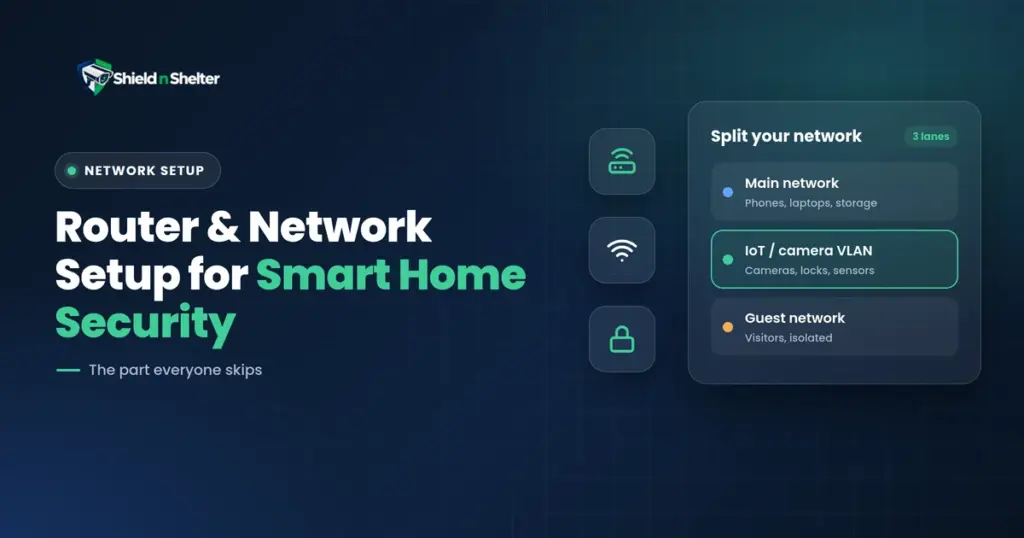
Most modern routers support either a guest network or VLANs (virtual LANs) (our smart home network setup guide covers both), and either one can be used to put IoT devices, cameras, locks, sensors, smart plugs, all of it, on a separate network from laptops, phones, and anything with sensitive accounts logged in.
Why this matters:
Contains a compromised device. Cheap smart devices get security patches inconsistently, and some never get patched at all. If one of them gets compromised, keeping it isolated means it can’t see or reach the laptop with banking logins or the phone with two-factor codes.
Limits what devices can talk to. A properly configured IoT network can restrict devices to only talking to the internet and the hub, not to each other or to other devices on the main network. That closes off a lot of the lateral movement that makes smart home breaches worse than they need to be.
Makes monitoring easier. With everything IoT related grouped on one network, it’s a lot easier to notice when a device is sending an unusual amount of data or reaching out to servers it has no business talking to.
Setting this up usually means logging into the router, creating a second network (most routers call it a “guest network” even when it’s being used for something other than guests), and connecting devices to that instead of the main WiFi. Some routers make this a five minute process, others bury it in an advanced settings menu that takes a bit of digging. Either way it’s worth the hour it takes.
Sharing and Permission Settings, by Device Type
Every device category asks for something a little different, and the defaults aren’t always the most private option. It’s worth going through each type at least once.
Cameras and video doorbells
Turn off any “share with neighbors” or community features unless they’re actually being used. A lot of doorbell apps default to opting users into neighborhood sharing networks that send clips to a wider community feed.
Review who has app access. Family sharing is convenient, but it’s worth checking the list periodically for accounts that shouldn’t still be there, like an old roommate or a service tech who set the thing up.
Disable location tagging on clips if the app supports geotagging shared footage.
Smart locks
Limit access codes to people who actually need them, and set expiration dates for temporary codes like a dog walker or a contractor.
Turn off activity notifications going to more people than necessary. It’s easy to end up with a lock that texts three family members every time the door opens.
Check whether the lock’s app requires location access to function. Some do for auto-unlock features, and that’s worth knowing about even if it stays enabled.
Sensors and hubs
Review what third party integrations are connected. Hubs often support dozens of integrations, and it’s common for a household to have two or three connected that haven’t been used in months.
Check data sharing settings for “usage analytics” or “product improvement” toggles, which are usually opt-out rather than opt-in.
Voice assistants and smart speakers
Turn off or limit voice recording storage in the account settings, and set up auto-delete for recordings older than a set number of days.
Review which skills or third party apps have been given access to the assistant over time.
None of these settings take more than a couple minutes once someone knows where to look, but going through all of them across every device in a home does take an afternoon. It’s worth treating as a one time setup task rather than something to revisit constantly.
Smart Home Privacy Is Part of the Architecture, Not an Afterthought
Four moves cover most of it:
- Keep footage local where the device supports it, so less of it sits on someone else’s server.
- Give smart devices their own network or VLAN, separated from the machines holding your personal data.
- Review sharing and permissions per device type: cameras and doorbells, smart locks, sensors and hubs, and voice assistants each expose different things.
- Prune who gets notified, including temporary codes for dog walkers or contractors and activity alerts going to more people than necessary.
The biggest shift in thinking here is that privacy configuration isn’t a separate step tacked onto a smart home security system, it’s part of the same design decisions as choosing a hub or planning automations. A system that’s locally processed, network segmented, and has sane sharing defaults per device is a better designed system, not just a more private one.
This is also where planning ahead of a purchase pays off, since it’s a lot easier to pick devices that support local storage and granular permissions from the start than to retrofit privacy onto a system that’s already built around cloud dependent hardware. The Smart Home Security Design {link} service walks through exactly this, mapping out hub selection, network setup, and device configuration together so privacy isn’t something bolted on after the fact.
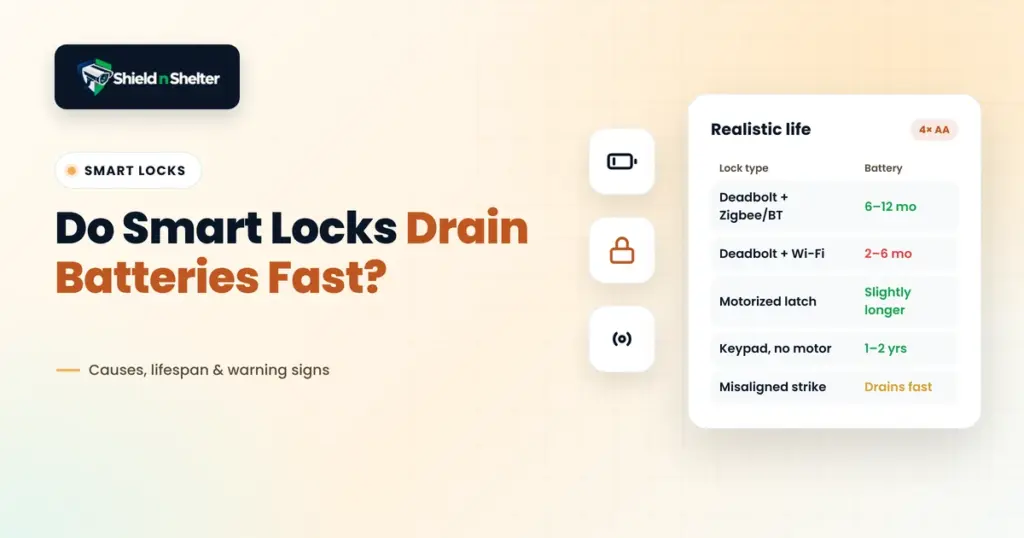
Locks leak as much as cameras do. Three smart-lock settings most people never change covers the ones that decide what gets logged and who can see it.
Need Professional, Brand-Agnostic Guidance?
Shield N Shelter provides 100% independent residential security consulting with zero equipment markups and zero vendor kickbacks.