
A Wyze motion sensor that stops reporting usually isn’t broken, it’s disconnected, underpowered, or drowned out. Before touching a reset button, it helps to know that this sensor doesn’t talk to your phone directly.
Every signal it sends has to reach the Wyze Bridge (built into a Cam v2, v3, or a dedicated bridge unit) over a low power RF protocol, and that bridge relays it to the app over WiFi. Two hops, not one. Either hop can fail on its own without the sensor itself being at fault.
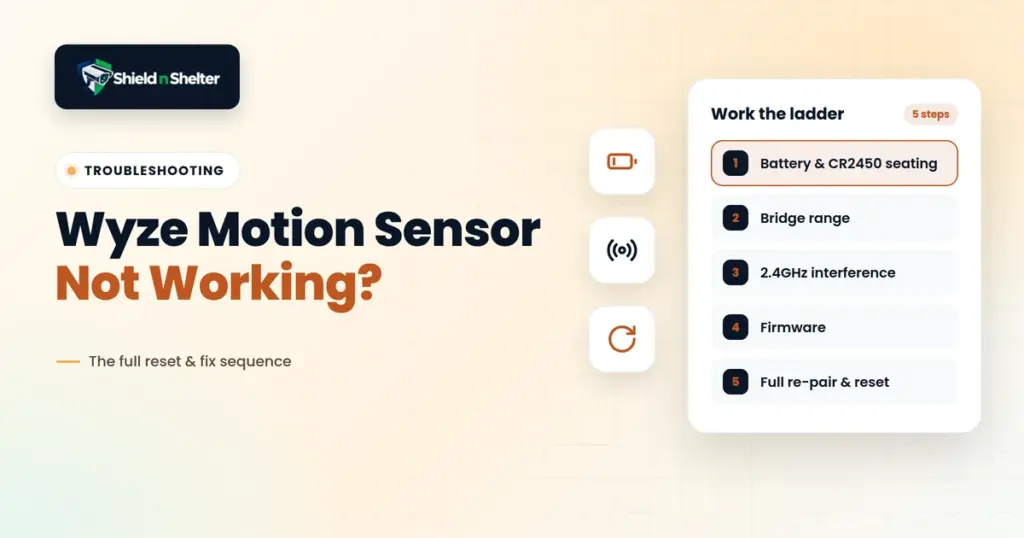
That’s why this works best as a ladder, not a grab bag of tips. Fix the cheapest, most likely cause first. Skipping straight to a factory reset often means redoing a re-pair that a battery reseat would’ve solved anyway, and we’ve watched people burn an entire evening resetting a sensor three times before ever checking the battery contacts.
Step 1: Battery Contact and CR2450 Seating
This is the most common failure and the least diagnosed, because a sensor with a battery contact issue doesn’t die outright. It drops intermittently, which makes it look like a range or interference problem when it’s really just physical.
The Wyze Motion Sensor runs on a single CR2450 coin cell. The contact springs inside the housing are small enough that a slightly misseated battery, or one with a bit of corrosion on the terminal, produces a connection that works most of the time and fails under minor vibration or temperature swing.
A sensor mounted somewhere that gets a door slam, HVAC vent airflow, or direct sun is more likely to show this, since thermal expansion on the contacts is enough to open a marginal connection.
Pop the battery out and wipe both faces and the two contact points inside the housing, a dry cloth works, a pencil eraser if there’s visible corrosion. Reinsert with the positive side matching the marking inside the housing and press until it actually seats, a battery that clicks in loosely is the problem, not a fix.
If the sensor’s been in service more than a year and the battery’s original, just swap it instead of reseating it. CR2450 cells are cheap, and voltage sag under load is real even before the low battery warning ever fires in the app.
If the sensor comes back online and holds for a day or two, that was the fix. Stop here.
Step 2: Bridge and Hub Range
If reseating the battery didn’t do it, or the pattern is more “works near the bridge, fails farther away” than random, range is next, and this is where the two-hop architecture matters again.
The RF link to the bridge is rated somewhere around 100 to 130 feet line of sight, and that number collapses fast through drywall, brick, metal ductwork, or a fridge sitting in the path.
Most bridge setups are a single point of contact rather than a mesh, so a sensor on the edge of range doesn’t degrade gracefully. It just fails to report sometimes, which again gets blamed on the sensor rather than the distance.
Confirm which bridge the sensor’s actually paired to, then measure or just walk the distance and count the walls. Temporarily move the sensor closer and see if the drops stop.
If they do, the sensor’s fine and the fix is relocating the bridge or adding a second one to cover that zone. Metal enclosures and HVAC ductwork are worse obstructions than plain drywall for this frequency, so a sensor that’s close in feet but blocked by a duct run can behave like it’s much farther away than it looks on paper.
Step 3: RF Interference from 2.4GHz Congestion
Range checks out, sensor still drops sporadically, especially at consistent times of day? Interference, not distance.
The Wyze ecosystem runs in the 2.4GHz band, the same crowded real estate as most home WiFi, microwaves, Bluetooth, baby monitors, and whatever else has accumulated on the network over the years.
A sensor near a router broadcasting on a congested channel, or near a microwave that runs at the same time every evening, shows a dropout pattern that lines up a little too well with when the interfering device is active. This one’s underdiagnosed because it doesn’t look like an RF problem, it looks random, until someone finally notices the sensor always drops around dinner.
Note when the dropouts happen. A pattern tied to time of day points at interference, not a fault. Move the sensor or bridge a few feet from routers and microwaves if that’s physically possible.
If the router supports manual channel selection, switch to channel 1, 6, or 11, the non-overlapping ones. That last fix helps every 2.4GHz device in the house, not just this sensor.
Step 4: Firmware
Physical causes ruled out, firmware mismatches between sensor and bridge are next. A sensor that paired fine and then went quiet right after a bridge firmware update is a classic version of this, since both sides need compatible firmware to keep the RF handshake reliable.
Check the bridge or camera’s firmware version in the app and confirm it’s current. Then remove and re-add the sensor after updating, which forces a fresh handshake instead of leaning on a stale pairing from before the update.
Step 5: Full Re-Pair and Factory Reset
If it still won’t hold after all of that, a full reset is the last software step before calling it hardware.
Remove the sensor from the app entirely, an actual delete, not a refresh. Pull the battery for a full 30 seconds to clear whatever latched state the sensor’s controller might be stuck in, since a reseat alone doesn’t always do that.
Put the battery back in, then re-pair from scratch through the add device flow, holding it within a few feet of the bridge during pairing even if it lives farther away once mounted.
When to Stop Troubleshooting and Replace
Battery swapped, range confirmed, interference ruled out, firmware current, full re-pair done, and it still won’t hold a connection? That’s hardware.
A sensor that pairs successfully and then drops within minutes, every time, regardless of proximity to the bridge, is telling you the RF module is failing, not that the environment is. At that point you’re not troubleshooting anymore, you’re just stalling a replacement that was always going to happen.
The Real Fix for Repeat Dropouts Is Placement
A sensor that needs this whole ladder run on it every few weeks isn’t unlucky, it’s in the wrong spot. Chronic dropouts are almost always a placement problem wearing a troubleshooting costume: too far from the bridge, too close to a noisy 2.4GHz device, or sitting in a dead zone specific to that home’s layout that no amount of resetting will fix.
Our Motion Sensor Tuning pillar covers how to actually map coverage and interference before mounting anything permanently, which is the difference between fixing a sensor once and fixing the same one every month for a year.
FAQ
Why does my Wyze motion sensor keep going offline?
Usually a marginal battery contact, RF range to the bridge, or 2.4GHz interference from a nearby router or microwave, roughly in that order of likelihood.
How do I reset a Wyze motion sensor?
Remove it from the app, pull the battery for 30 seconds, reinsert it, and re-pair through the app’s add device flow while holding it close to the bridge.
What battery does the Wyze motion sensor use?
A single CR2450 coin cell.
How far can a Wyze motion sensor be from the bridge?
Roughly 100 to 130 feet line of sight, though walls, metal ductwork, and mirrors cut that down a lot.
Can WiFi interference affect a Wyze motion sensor?
Yes. The sensor shares the 2.4GHz band with WiFi, Bluetooth, and microwaves, and congestion or a nearby active device can cause intermittent drops that have nothing to do with the sensor itself.